效率
Categorize Outlook Email with AI
Classify an unflagged Outlook message and move it to a matching folder.
下載工作流程
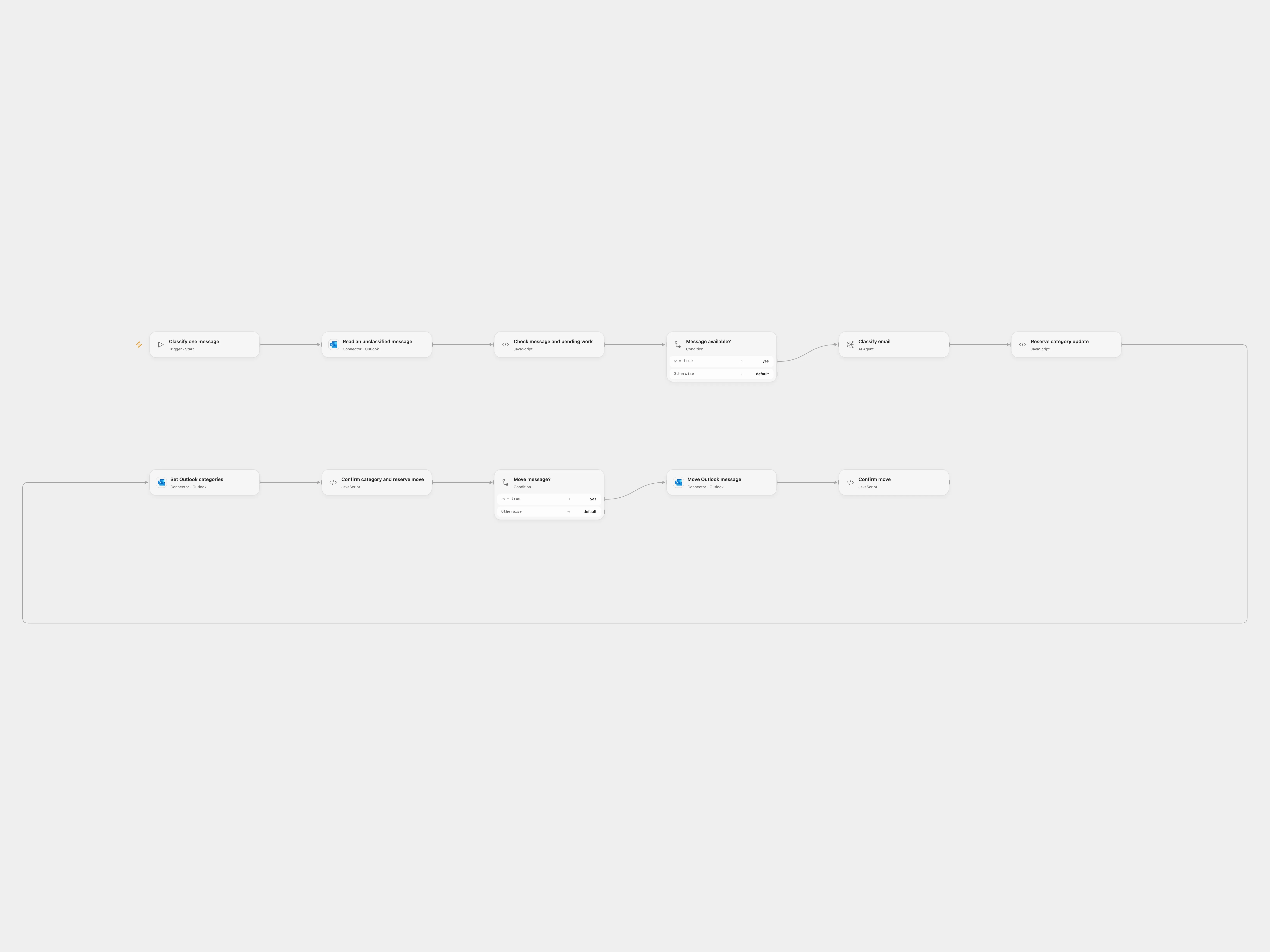
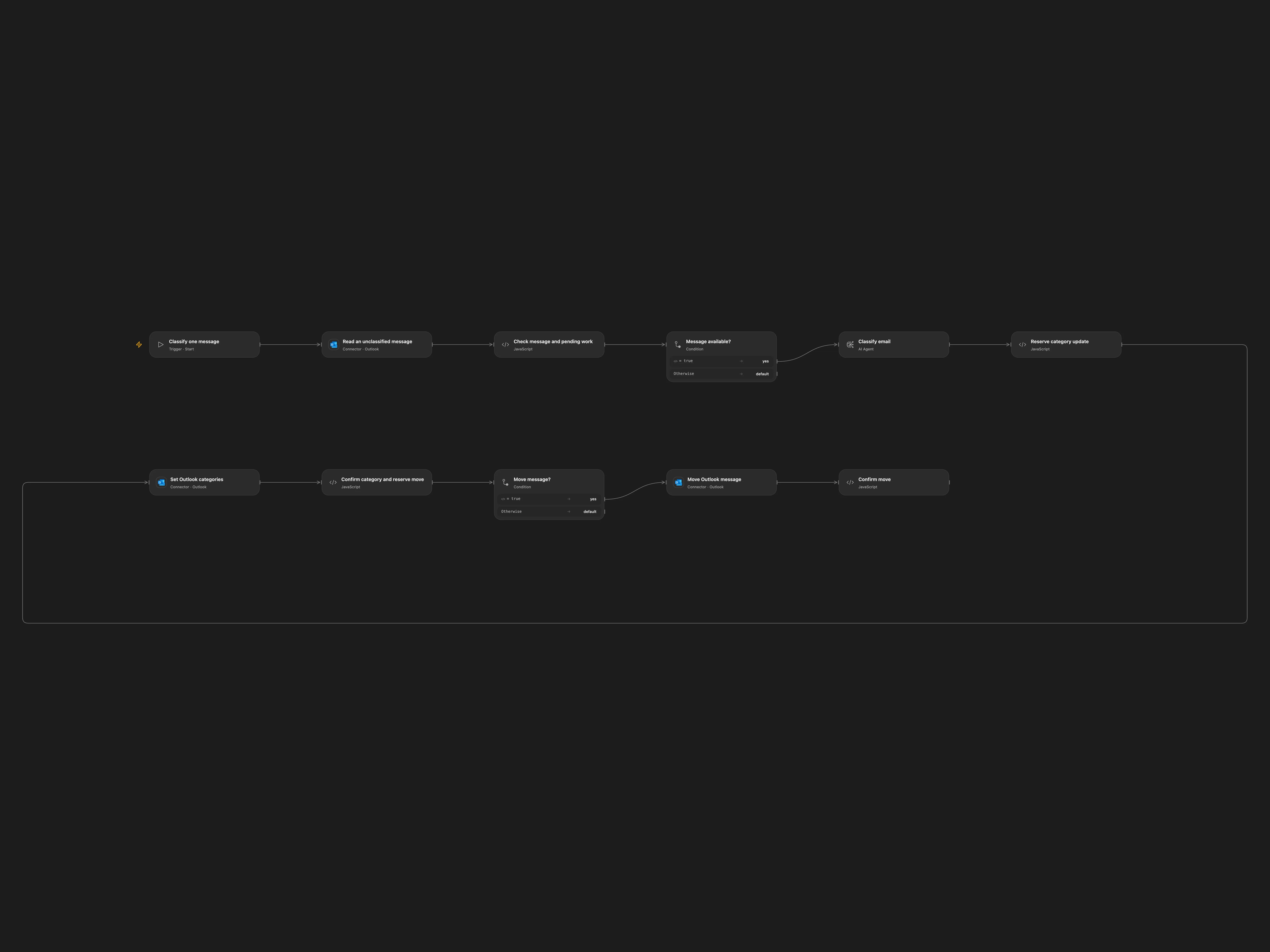
Classify an unflagged Outlook message and move it to a matching folder.
Setup
Connect Outlook with Mail.ReadWrite access and configure a model. Set the source folder in Read an unclassified message and folder IDs in Reserve category update. Enable persistent State and avoid overlapping runs.
Behavior
A manual run selects up to one message that is unflagged and has no categories. The model chooses action, junk, receipt, SaaS, community, business or other, with an optional subcategory. It updates the message categories. Junk, receipt, SaaS and community move to corresponding folders; action and business move to Actioned only if already read. Other stays in place. Review classifications; email content is sent to the model and may appear in execution history.
If an update or move has an unknown outcome, inspect the message and folders in Outlook and manually finish any missing action. In Open Flow enter the original message ID in Check message and pending work to acknowledge reconciliation, run again and clear the field. Moves can change message IDs.
In n8n
In n8n connect Outlook and Ollama, set the input and destination folder IDs, and select a Data Table with item_key and status text columns. In n8n inspect the pending Data Table row, complete any missing action manually, then mark the row done.
Inspiration & credits
Original workflow by Wayne Simpson at nocodecreative.io.
Adapted from Auto Categorise Outlook Emails with AI in enescingoz/awesome-n8n-templates.
Source collection notice: © 2024–2026 Enes Cingoz, CC BY 4.0. The source export does not identify a separate template author or license. See repository licensing for the scope of OOMOL contributions and third-party material.