On this page
Triaging an inbox manually doesn’t scale, yet letting an unconstrained agent rewrite or archive emails on its own is risky. A cleaner pattern is a deterministic workflow: poll unread messages, classify each email into fixed categories with an AI step, and log the structured result to Google Sheets for review.
This guide walks through the Log Unread Gmail Classifications to Sheets template, available in both Open Flow and n8n JSON formats so you can import and run either version immediately.
What this workflow does
Every minute, the workflow polls for new unread Gmail messages (excluding drafts, spam, and trash, without marking messages read or moving them):
- Check new unread mail: Fetches new unread message IDs (up to 100 messages per poll in Open Flow).
- Read the email: Retrieves the sender, subject, date, and first 500 characters of the body.
- Classify and summarize with AI: Assigns one of four categories (
urgent,important,informational, orspam) and writes a one-sentence summary. - Log to Google Sheets: Appends
Date,From,Subject,Category, andSummaryto your target sheet.
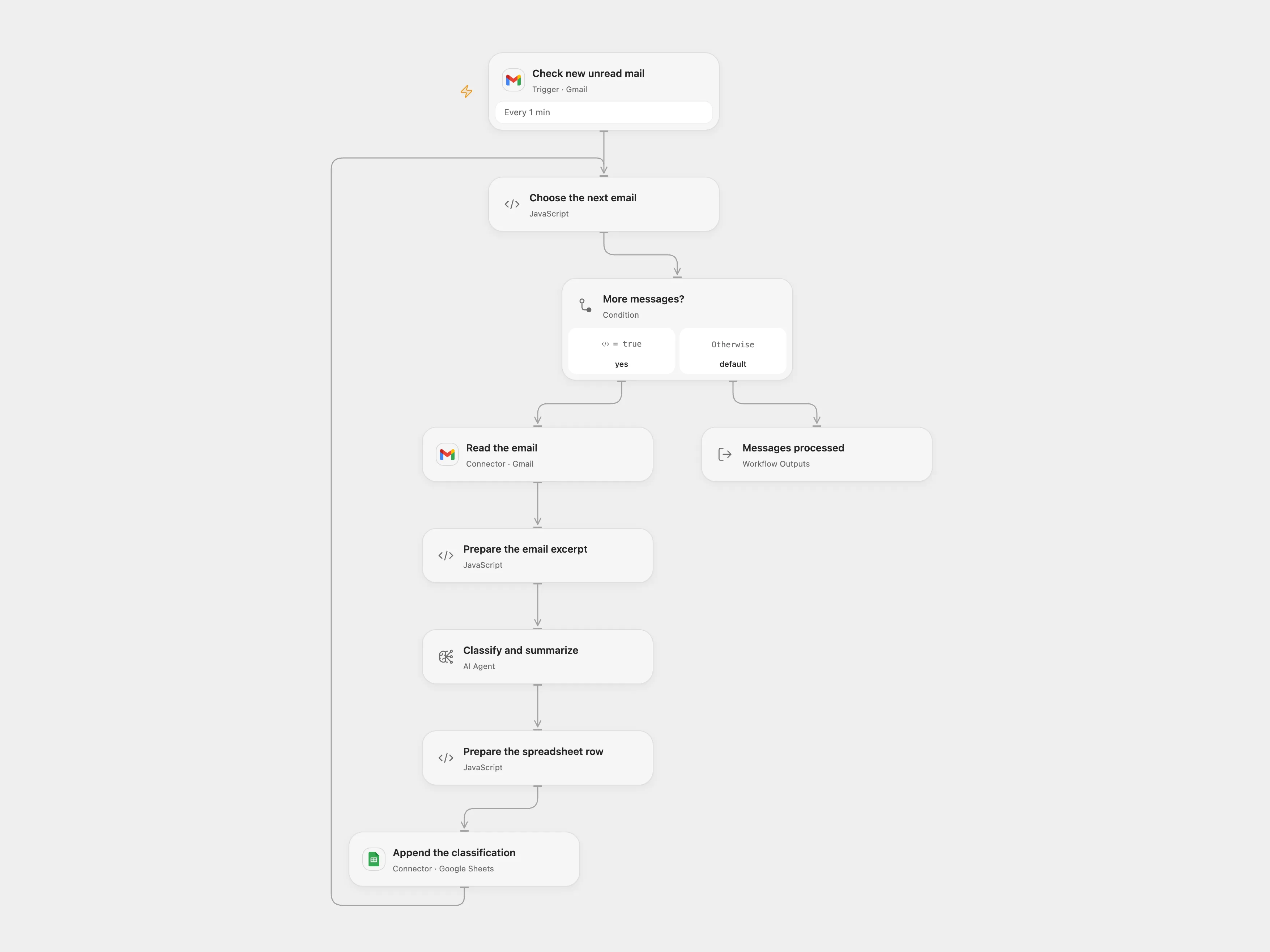
Preview of the Open Flow email classification workflow. Both JSON versions are available on the template page.
Download the dual-version JSON templates
You can inspect the full setup notes or import the workflow directly from the template page:
- Template details page: Log Unread Gmail Classifications to Sheets
- Import directly into Open Flow: Open in Open Flow Console
- Download Open Flow JSON: log-unread-gmail-classifications-to-sheets.openflow.json
- Download n8n JSON: log-unread-gmail-classifications-to-sheets.n8n.json
Required accounts and setup
| Requirement | Open Flow version | n8n version |
|---|---|---|
| Gmail | Connect the same Gmail account on Check new unread mail and Read the email | Connect Gmail OAuth credentials on the trigger and message nodes |
| Google Sheets | Connect Google Sheets; set spreadsheet ID and range 'Lite Log'!A:E |
Connect Google Sheets; select the same spreadsheet and sheet in Log to Sheets |
| AI model | Uses your unified OOMOL account or any OpenAI-compatible endpoint | Requires a separate OpenAI API key and account |
| Sheet headers | Row 1 headers in exact order: Date, From, Subject, Category, Summary |
Row 1 headers in exact order: Date, From, Subject, Category, Summary |
Step-by-step setup
- Prepare your spreadsheet: Create a Google Sheet with a tab named
Lite Logand headersDate,From,Subject,Category, andSummaryin columnsAthroughE. - Import one format: Open the template page and either click Import to Open Flow or download the n8n JSON and import it into your n8n instance.
- Connect credentials: Authorize Gmail and Google Sheets, and verify the AI model node configuration. Activate only one version against the same inbox and sheet to avoid duplicate rows.
Test input and expected output
Send yourself (or mark unread) a test email with the following payload:
From: billing-alerts@example-vendor.com
Subject: Action required: Payment failed for invoice #INV-2048
Body: Hi team, your card ending in 4242 was declined for invoice #INV-2048 ($490.00). Please update your payment method within 48 hours to avoid service interruption.
After the next 1-minute poll completes, you should see a new row appended to 'Lite Log'!A:E:
| Date | From | Subject | Category | Summary |
|---|---|---|---|---|
2026-11-18T10:05:00Z |
billing-alerts@example-vendor.com |
Action required: Payment failed for invoice #INV-2048 |
urgent |
Invoice #INV-2048 ($490.00) payment failed and requires a card update within 48 hours to prevent service interruption. |
Open Flow vs. n8n in this template
Both templates handle the exact same task, with two practical differences worth noting:
- Credential and billing overhead: Open Flow runs the AI step through your unified OOMOL account (or your own model endpoint), whereas n8n requires managing a separate OpenAI API key and bill.
- Error handling on sheet appends: Neither format deduplicates rows automatically, so Open Flow stops on an uncertain sheet append instead of blindly retrying and creating duplicate entries.
If you’re deciding between the two engines for production workflows, see Open Flow vs n8n: Which is best for you?.